Practice what you teach
ChocaBLOC gives your class a playful way to practice math, revisit familiar skills, and try new challenges. Explore free math games for Grades K-6, with flexible tools to assign practice and follow student progress.
Use ChocaBLOC for a whole-class concept demo, a math station, or independent practice. Choose a game that connects with your lesson and give students another way to work with the skill that they will enjoy.
Already have an account? Sign in

Keep the practice and progress in view.
It’s easy to create a class, invite your students, and assign games right from your teacher dashboard. Track assignment completion and review results by student and skill to help plan your next lesson or follow-up conversation.
Create an account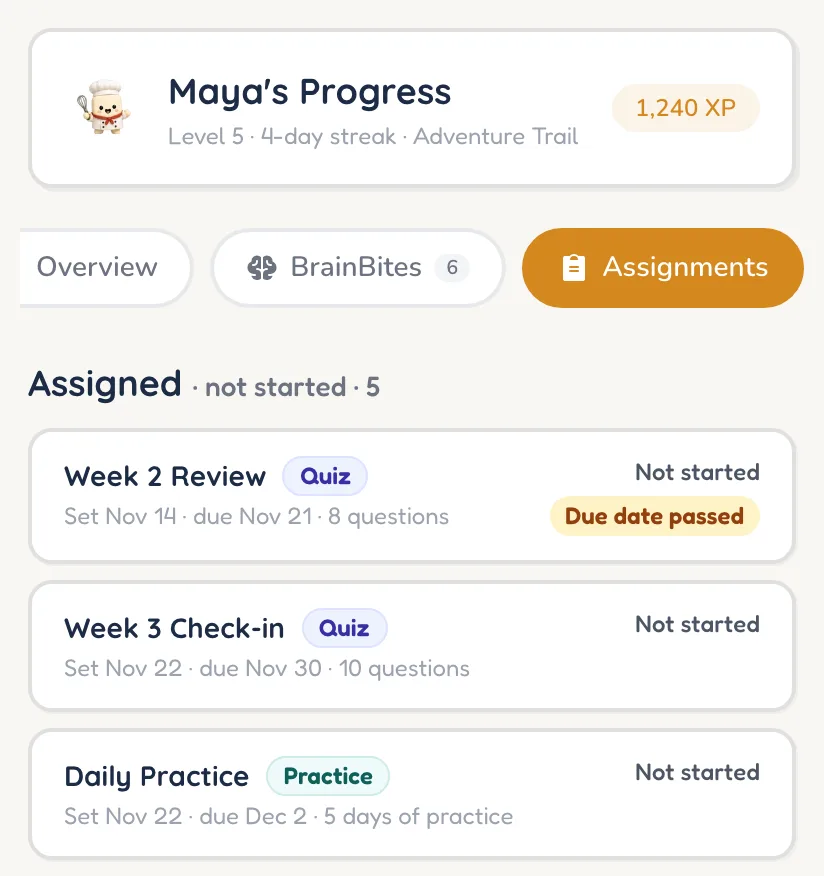
Start with the skill. Find the game.
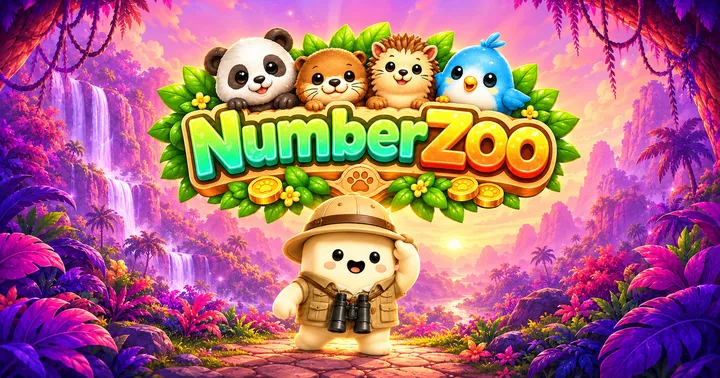
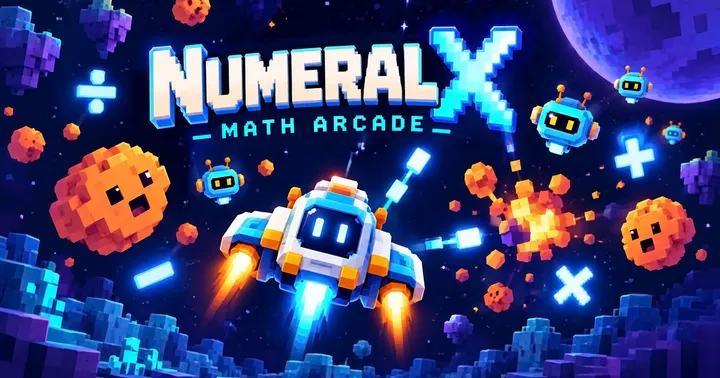
Core Curriculum has never been so fun. Whether you’re revisiting addition, practising multiplication, or exploring probability, choose games with a clear learning focus. Each game’s information shows the skills and curriculum standards it covers, helping you decide where it fits.

Mountain Mates
See skills and standards for Mountain Mates
A few things teachers ask
Is it free for teachers and schools?
Yes, Chocabloc is completely free for students and teachers! Any person can make a free Teacher Account and create a classroom, then generate a log-in slip for a student to join their classroom.
How do students sign in? Do they need email addresses?
Students can create an account on their own by entering a first name and an initial for their last name (we recommend using their real information to help with remembering, but it isn’t required as we don’t verify students’ names). Once they have done so, a few numbers will be generated to complete their username, and a password will be created consisting of two animals and a few numbers.
An account a student makes on their own is a trial account until a teacher or parent links it. If a trial account isn’t used for 30 days, we delete it.
As a teacher with a classroom, you can also create accounts for your students with Invites and the students can use those invites to validate the account you give them, or connect their current account to your classroom.
How do I create a class and assign games?
You can create a classroom by going to your My Classes tab and clicking + Create Class. Assigning games will mostly be done verbally to your students, though you can monitor the games they are playing and their learning progress in your dashboard, and create Assignments for them to practice those skills.
What does the teacher dashboard show?
The Teacher dashboard shows your Classes, Assignments, a list of Games, and your Invites. Clicking each of these will take you into a more detailed view where you can create new respective features and edit existing ones. The expanded Games folder lets you see what skills each game practices.
Where is student data stored, and is it shared with anyone?
Student data is stored in our database. Outside our own team, it is only shown to the student and the classes and parents linked to them. We don’t collect a child’s age, location or email address.
Does it work with Google Classroom or Clever?
Not yet!
Can parents see what’s assigned at school?
A parent can only see Assignments registered to their child and the names of classes their student is in. They cannot see other students in the class.
Do kids need an account to play?
Kids can play and experience the entirety of Chocabloc without an account, but we do encourage that they make one so they can store their progress and access all of the learning features at both home and school, and so you can track their progress from your own account!
Does it work on Chromebooks, iPads and phones? Is there an app?
Chocabloc is supported on Chromebooks, PCs, tablets, and phones. Currently, we do not have an app and are focusing exclusively on making the website the best it can be!
Can I tailor the learning experience per-child?
Yes! You set the grade level for your class when you create it and every new student who creates an account and joins gets assigned that grade level. Once they are in your class, you can go to your class list and see every student, then click the dropdown by their name to change the grade level the games aim for when giving them questions.
Students who are in multiple classes, or that were in a different grade last year and have moved up, will not have their grade level automatically set when joining a new class, but can have their grade manually changed in the class menu.
What is a co-teacher? What can they do?
A co-teacher is someone who has the ability to:
- create assignments
- create invites to the class and print out new invites
- change a student’s grade level to accommodate their skill level
- view students’ skills progress and move them up or down a step
A co-teacher CAN NOT edit or delete a class, invite another co-teacher, and cannot remove a student from the class.
What grade should I put if I teach a class with split grades?
Make a separate class for each grade so you can make assignments for each.
Or keep one class and change each student’s grade from your class list to best match their skills.
What is a Practice Assignment?
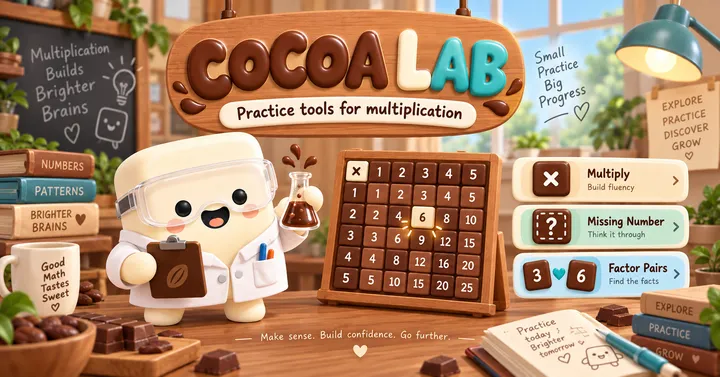
A Practice Assignment is a game of Cocoa Lab where you set the specific curriculum for your students to test. This is a great way to practice times-tables!
What is the purpose of Coins, XP and Game rewards?
Stay tuned for those! We have big plans coming, but for now, they’re just a way to compare “points” between the kids.
I want my students to practice a specific concept in a fun way; how can I know what game to recommend?
You can click on your class and then click the Games tab below it (beside Assignments). This will bring up a list of games appropriate for your class. Clicking on a game will bring up a page that shows which skills that game practices!
What is the Progress Tab in my class?
Clicking Progress shows you a bunch of different standards and your class’s progress at a glance, showing you the general competency of your students in any given skill. Clicking on a standard will give you a more in-depth look at the skill. Here, you can see how each individual student is doing based on their answers in games/assignments, and allow you to monitor them individually, like lowering or raising their proficiency. You can also set Chocabloc to email you reminders weekly if you have some students who may be struggling in an area.
Already have an account? Sign in